Gmail
Connect Gmail with an app password so Area O1 can follow your case mail, keep your contacts current and draft follow-ups you approve.
Area O1 connects the way mail apps do, over IMAP and SMTP with an app password (ADR 0014 and its amendment). Gmail is the only Google service it uses, and connecting it is optional.
Connect Gmail
It takes about two minutes.
- Turn on 2-Step Verification for your Google account at myaccount.google.com/signinoptions/twosv, if it isn't on yet. Google offers app passwords only with it on.
- Create an app password at myaccount.google.com/apppasswords. Name it "Area O1". Google shows 16 letters, once.
- In Area O1, open Settings > Gmail (or the Email step of onboarding). Paste your Gmail address and the app password, and press Connect Gmail.
Area O1 checks the password with one sign-in to imap.gmail.com and keeps it in your OS keychain, never in your
workspace.
If it doesn't connect
| Area O1 says | What to do |
|---|---|
| Gmail didn't accept that app password | Check the address. Create a new app password and paste it right away (Google shows each one only once) |
| That's your normal Google password | Use an app password (step 2), not the password you sign in with |
| An app password is 16 letters / 2-Step Verification is off | Paste the app password, not your Google password. If the App passwords page says the setting isn't available, turn on 2-Step Verification first (step 1) |
| IMAP is turned off for this Gmail account | In Gmail: Settings > See all settings > Forwarding and POP/IMAP > Enable IMAP. On a work or school account, your admin may need to allow it |
| Google wants you to sign in once in your browser | Open gmail.com in your browser, then try again |
| Couldn't reach Gmail | Check your internet connection |
What Area O1 does with it
An app password opens your whole mailbox over IMAP and SMTP; Google can't narrow it the way OAuth scopes do. The limits are Area O1's own rules, each covered by tests.
Threads with your contacts
All Mail is opened read-only. Area O1 searches only for mail to or from the email addresses of your contacts, and fetches headers only: who, when, the subject and the Message-ID. It never fetches bodies or attachments, and nothing turns read. Each contact's last touch follows their newest thread.
The google job does this every 15 minutes while Area O1 is running, and skips until Gmail is connected. Press
Refresh threads in Settings > Gmail to run it now.
The Mail view
Contacts > Mail shows case-relevant mail only, in seven categories:
- Invites
- Judging & hackathons
- Reviewer requests
- Letter writers
- Press & media
- Awards & memberships
- Other contact threads
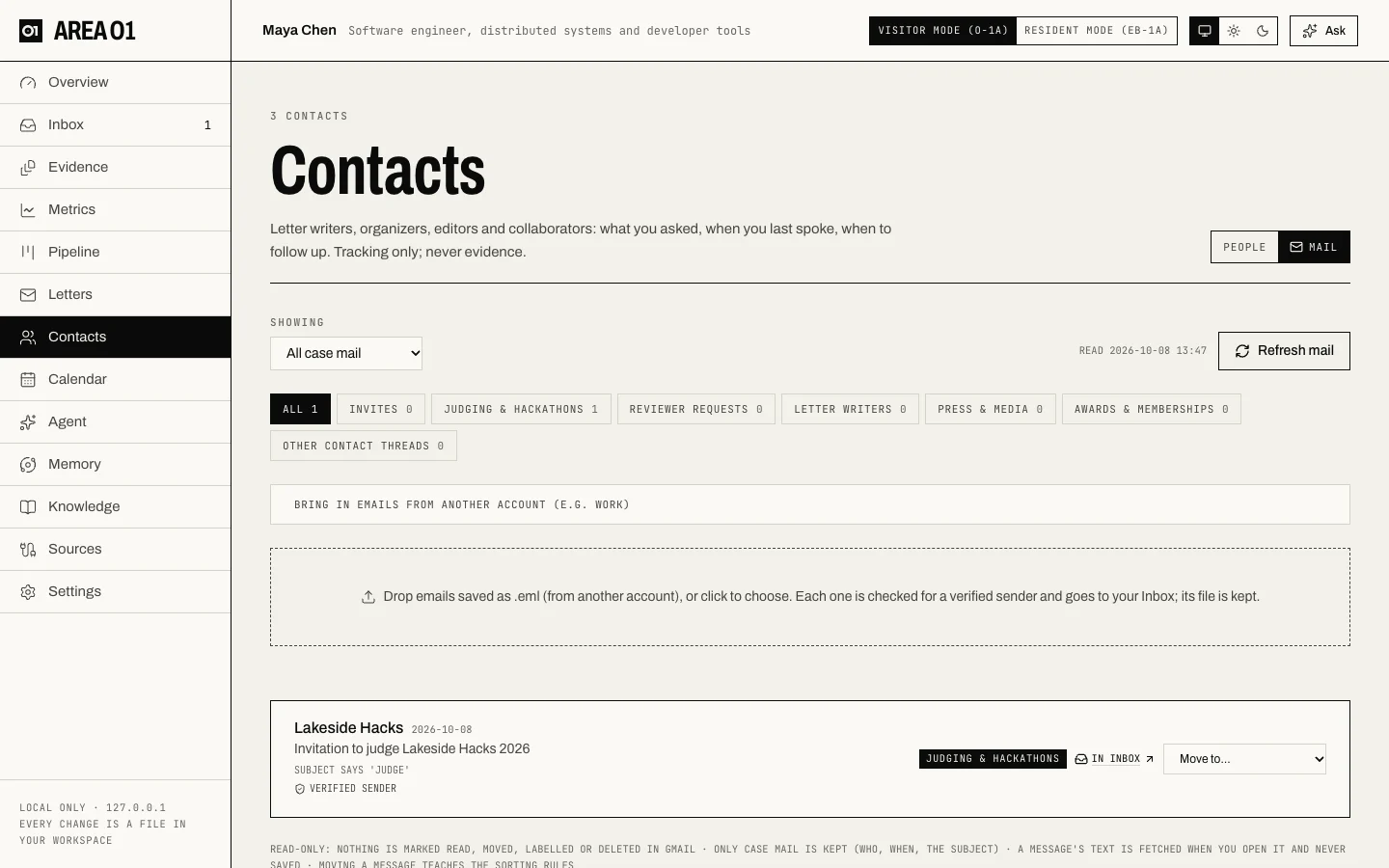
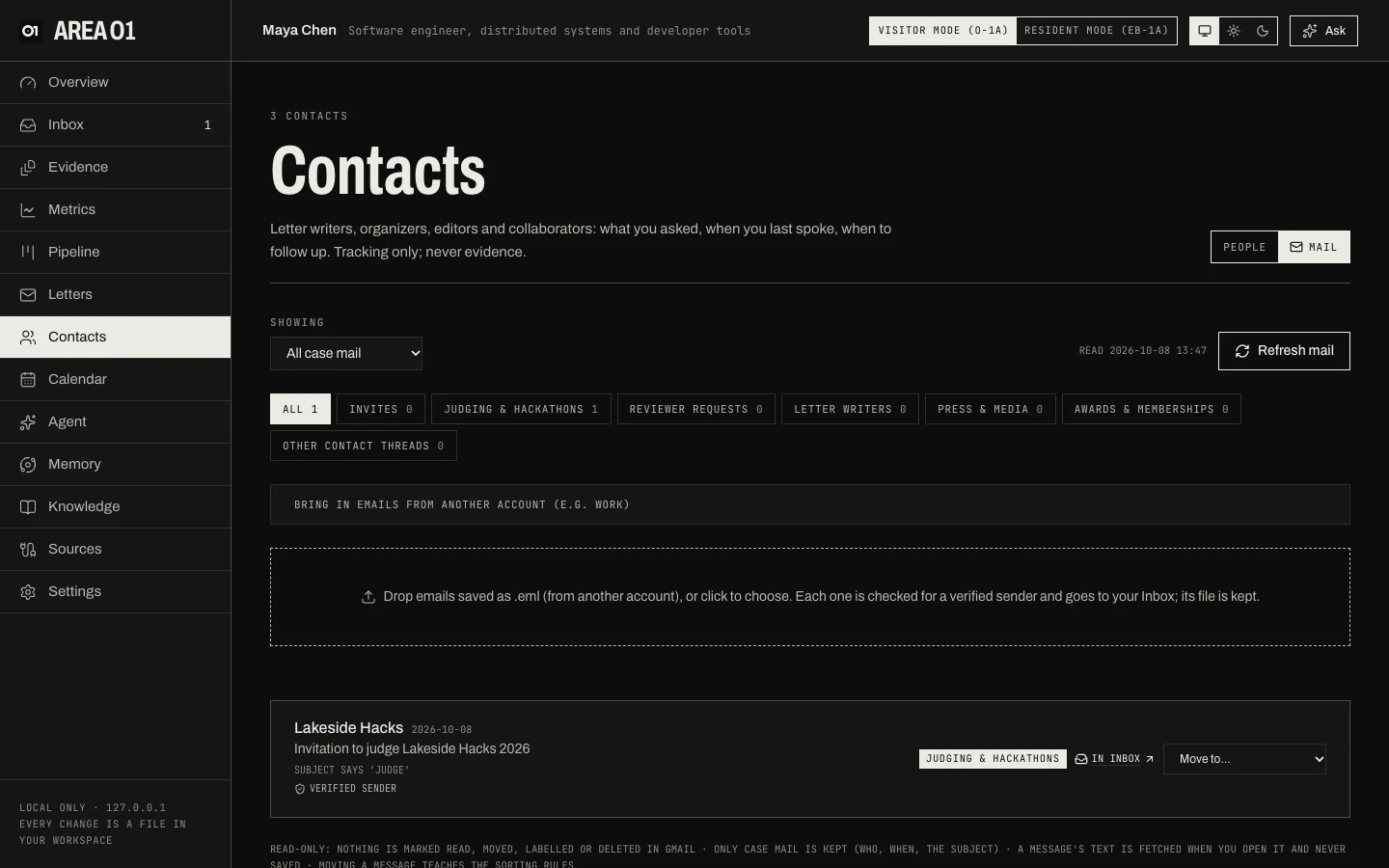
Press Refresh mail to read the last 30 days. Promotions and Social are skipped, except mail there about judging, hackathons or reviewing, or from a known organizer. For each message Area O1 reads the headers, plus the first lines of new messages so they can be sorted.
Rules sort first: your contacts, known organizer domains, subject keywords, and senders you taught by moving
a message to another category. What no rule sorts stays unshown, unless you turn on Model sorting in
Settings > Gmail (off by default). Then it goes to the small, cheap mundane model tier, redacted (sender,
subject and first lines), and the cost counts toward your monthly cap.
Area O1 keeps who, when and the redacted subject of case mail, and nothing at all of the rest. Opening a message fetches its text from Gmail right then and never saves it. It stays read-only: nothing turns read, moves, gets a label or is deleted in Gmail.
The daily opportunity check
Off until you turn it on in Settings > Gmail > Daily opportunity check (or press Check now to run it once). Once a day, invitations to judge, review, speak or apply become Inbox items. Message text is read in memory only; Area O1 keeps the facts and one quoted sentence. Each find is marked verified, unconfirmed or suspicious. See Daily opportunity check.
Sending
Area O1 sends only when you press Approve & send on a draft. Then:
- You have 10 seconds to press Undo send before it leaves. If Area O1 stops during those seconds, the email stays a draft.
- It goes from your Gmail (it shows up in Sent), only to an address still on the contact.
- At most 10 a day (
outreach.daily_limitinareao1.yaml). - Agents and autopilot can't send.
- Follow-ups after 7 quiet days (
outreach.follow_up_days) are drafts for you to approve, never sent on their own.
See Outreach etiquette for how to write to organizers and letter writers.
Bring in emails from another account (e.g. work)
Evidence often sits in a mailbox Area O1 isn't connected to, like a work account: an invitation to judge, a thank-you for reviewing, an award notice.
Check your employer's email policy first
Many employers don't allow forwarding work mail to a personal account. Ask if you're unsure, and bring in only emails about your own work and recognition, never confidential business mail.
Two ways, and both keep the original headers, so Area O1 can show whether the sender was verified:
- Forward as attachment to your connected Gmail. In Gmail: open the message, then More (⋮) > Forward as attachment (or select several, then ⋮ > Forward as attachment). In Outlook and Apple Mail the command is also called Forward as Attachment. Then press Refresh mail in Contacts > Mail. The forward is shown as the original (its sender, subject and sender check), and Import original sends it to your Inbox with its file.
- Download the message as an
.emlfile and drop it on Contacts > Mail, Evidence or the Inbox (several at once is fine). In Gmail: More (⋮) > Download message. Outlook on the web and Apple Mail can save a message as.emltoo (Apple Mail: File > Save As, format Raw Message Source). Outlook for Windows saves.msgfiles, which Area O1 can't read: use Forward as attachment there.
A plain Forward (not as an attachment) drops the original headers. The sender can't be verified then, so prefer the two ways above.
Each email becomes an Inbox candidate with a suggested criterion, a stage (an invitation stays invited; only an
explicit thank-you or confirmation is completed) and the sender check. Accepting it files the original .eml
as the exhibit. See .eml and forwarded mail for the details.
Turn it off
Settings > Gmail > Disconnect forgets the app password on this computer. Google has no way for an app to revoke an app password, so also remove it at myaccount.google.com/apppasswords.
Calendars
Area O1 doesn't sync with Google Calendar. Your deadlines live on the Calendar page and in
data/calendar.ics. Calendar apps on this computer (Apple Calendar, Outlook, Thunderbird) can follow them with
the Subscribe link (webcal://127.0.0.1:<port>/calendar.ics) while Area O1 is running. Google Calendar can't
reach your computer, so import the file there instead (Google Calendar > Settings > Import & export), and
re-import it when deadlines change.